One Document, Even When You Switch Modes
Does opening a preview split the window in two, and does switching modes feel like reopening the document? Mori’s Live, Source, and Reading modes are three views of the same buffer, so switching involves no conversion, saving, or reparsing.
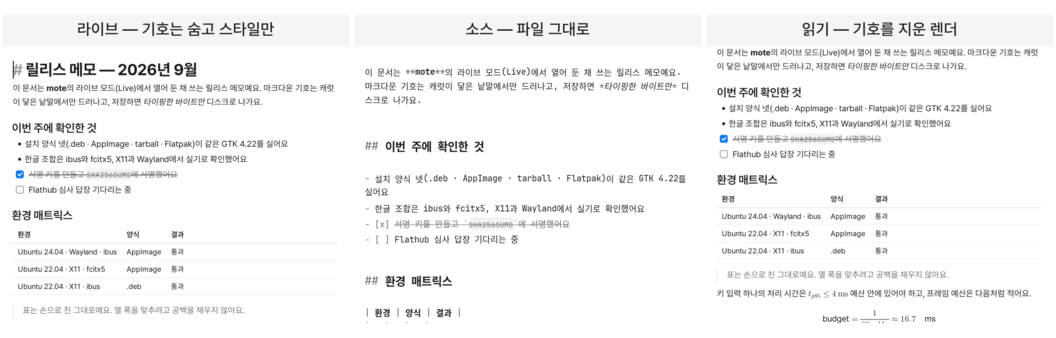
Markdown editors usually split the screen in two. You write on the left and see the result on the right. Because the same document is rendered twice, the scroll and selection positions must constantly be kept in sync.
Mori was built differently. There is only one document, and only the way you view it changes.
One Document, Three Views
Mori has three modes.
- Live: Hides the symbols and shows the formatting immediately.
- Source: Shows the content exactly as it is stored in the file.
- Reading: Shows the result with the Markdown symbols completely removed.
The core reads the document and creates a list of decorations. There are only three kinds: which ranges to style, which ranges to hide, and which ranges to render as widgets instead.
The three modes are the result of applying different filters to this list. Switching modes does not reopen or reanalyze the document. The block tree and inline results remain unchanged; only the filter changes.
That is also how it is written in the performance budget. A mode switch must finish within one frame and the transition animation. If reparsing is involved, it is a violation. Because the cost of switching does not scale with the size of the document, even large documents switch at the same speed.
The caret and selection also remain unchanged. The character you were editing in Source is in the same place in Live, and the sentence selected in Live remains selected in Source.
You are not moving to another copy of the document; you are looking at the same document from a different perspective.
Write, Check, and Read
Live mode is convenient when writing. Only the content remains on the screen, and Markdown symbols appear when the caret reaches them. Tables, formulas, and images are rendered as widgets in place. You can edit inside cells while looking at the grid.
Use Source mode when you need to check the symbols precisely. It is useful for checking whether a table’s pipes are misaligned, whether a code block is closed, or whether there is whitespace at the end of a line.
Reading mode is the view for seeing the final result. It does not merely hide the symbols; it removes them from the screen entirely. Printing and PDF output are also based on this view. You cannot edit, but you can select and copy text, and you can open links.
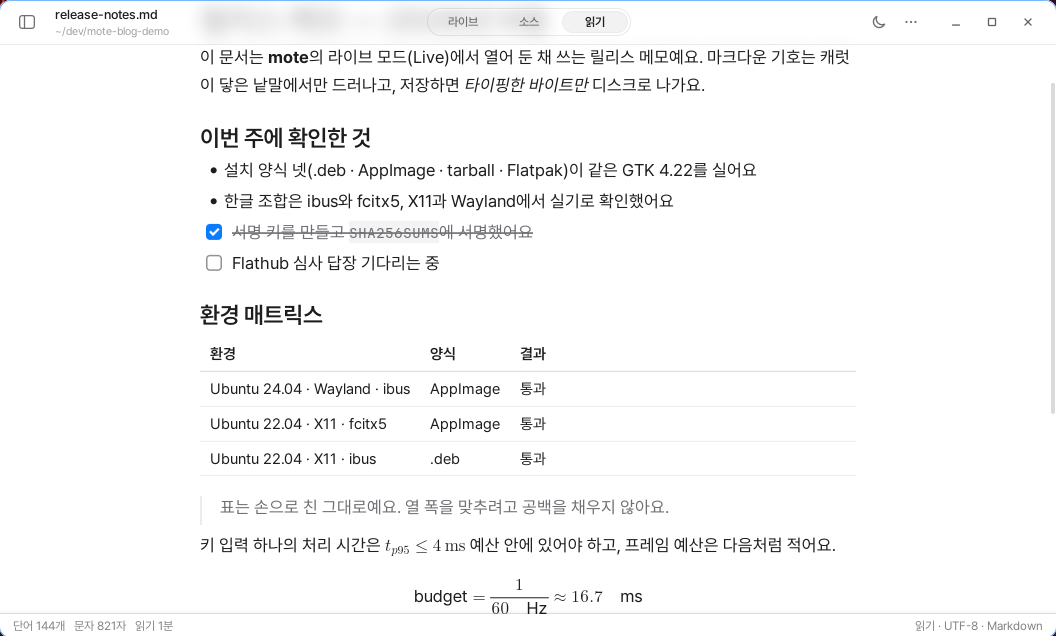
Creating Reading mode was not simple. Once the symbols were removed, positions on the screen no longer matched positions in the file. Search results shifted sideways, and the place clicked no longer matched the caret position.
The core now records the positions and lengths of the removed characters as well. It can map a position clicked on the screen back to the exact position in the file.
Switch Right Where You Were Reading
Select the mode you want in the header, or use Ctrl+Shift+1, 2, or 3.
The first line on the screen and the caret position are preserved when you switch. The crossfade is a finite 160ms animation, so no scheduled work remains after it ends. You can choose which mode new windows open in from the Editing tab in Settings.
There was a small trial-and-error period with the keyboard shortcuts. For a while, the guide said that Ctrl+1/2/3 switched modes, but those shortcuts actually created headings. The window captured the keystrokes first, so the mode-switching code never ran.
The roles are now clearly separated. Ctrl+Shift+1/2/3 switches modes, while Ctrl+1 through Ctrl+6 create headings. The command palette, keyboard shortcut list, and site documentation have all been updated to say the same thing.
Focus Mode Sits Lightly on Top of the View
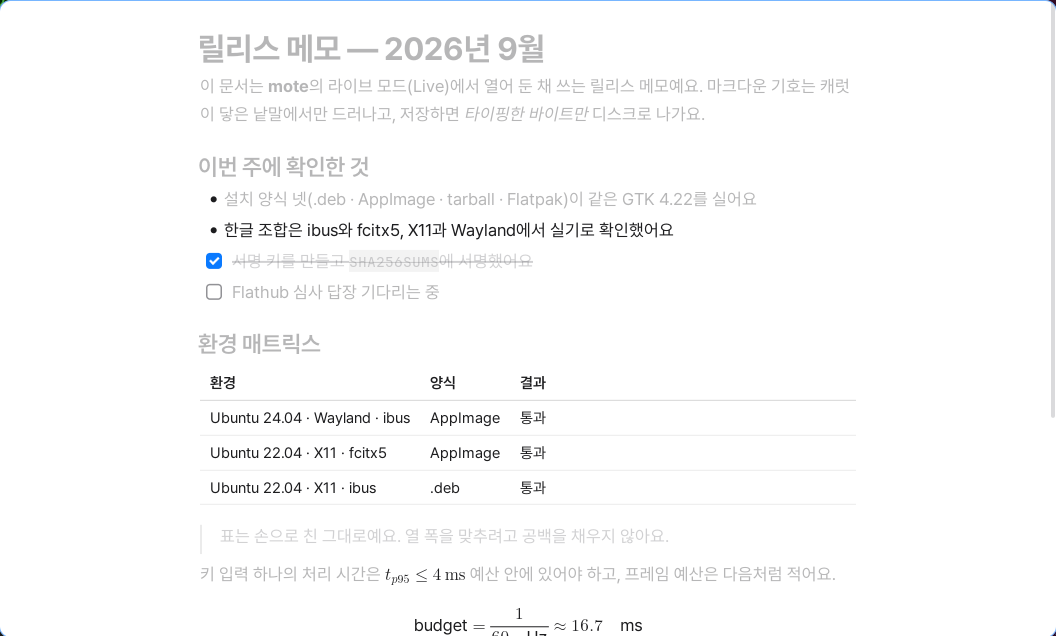
Press F8 to show only the block containing the caret clearly. For all other lines, only the ink alpha is reduced to 32%.
Only the color changes; the positions of the characters do not move. There are no blur effects or animations either, so moving between paragraphs does not require recalculating the entire screen.
Focus mode is not a fourth mode. It is an option layered on top of the Live view, so you can leave it enabled while moving to another mode.
Why the Screen Is Not Split in Two
Mori does not have a split preview.
Rendering the same document twice means synchronizing scrolling, transferring selections, and managing the state of two views. Mori decided not to create that problem in the first place.
There is one undo history, one selection, and one scroll position.
There are three modes not because there are three documents, but because there are three moments when you need to look at the same document differently.