Por que mostramos os símbolos do Markdown apenas na palavra sob o cursor
Você já posicionou o cursor para corrigir uma única palavra em negrito e viu o parágrafo inteiro voltar ao Markdown original? O mori revela somente os símbolos da sintaxe que o cursor alcança.
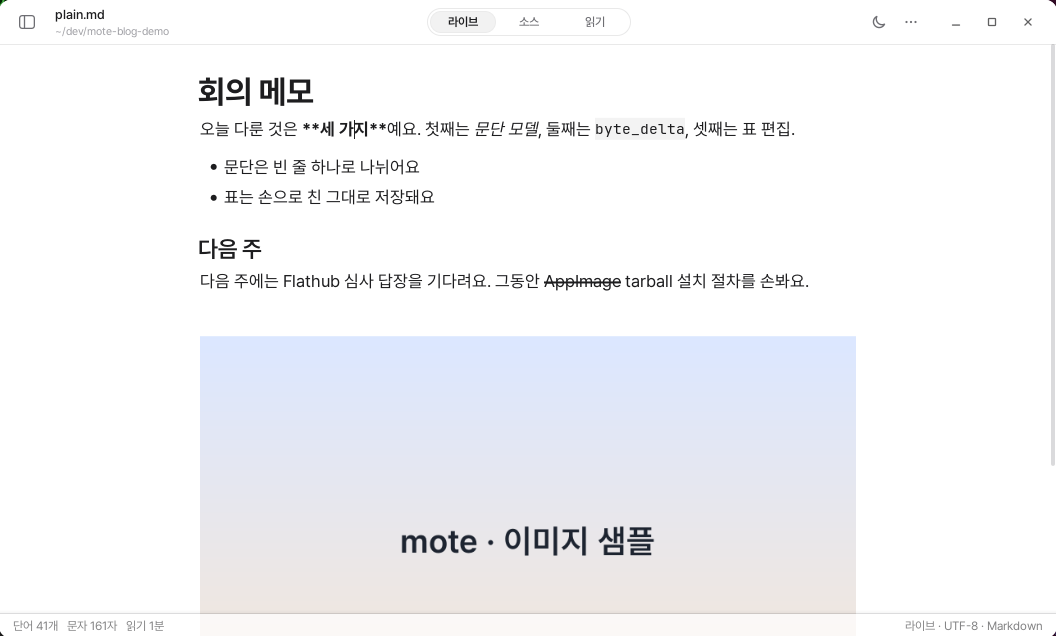
No modo ao vivo, a posição do cursor determina o que aparece na tela. Os símbolos de Markdown devem ficar ocultos normalmente e aparecer apenas durante a edição.
Então, como saber quando é “durante a edição”?
No início, o mori usava o parágrafo inteiro como referência. Quando o cursor entrava em um parágrafo, todos os símbolos daquele parágrafo eram exibidos.
A implementação era simples, mas a tela ficava poluída. Bastava posicionar o cursor para corrigir uma palavra em negrito, e até o link e o código três linhas abaixo voltavam ao formato original. Os olhos estavam fixos em um ponto, mas o parágrafo inteiro se movia.
Observamos a sintaxe, não o parágrafo
Agora, o mori exibe apenas a sintaxe que está em contato com o cursor.
O conteúdo original aparece somente quando o cursor está entre o símbolo de abertura e o de fechamento. As posições imediatamente antes e depois dos símbolos também fazem parte do intervalo. Afinal, posicionar o cursor nesses locais também é uma ação feita para editar a sintaxe.
Assim que o cursor se afasta uma posição, o conteúdo volta à aparência renderizada. Ao aparecer e desaparecer, ele usa uma transição de opacidade de 120 ms. Como é uma transição com início e fim, nada permanece depois que ela termina.
Mesmo que um parágrafo contenha negrito, link e código inline, o restante não se move. Apenas a sintaxe alcançada pelo cursor muda, e a área redesenhada se limita àquela linha. O documento inteiro não é reinterpretado.
O mesmo princípio se aplica a itálico, negrito, tachado, marca-texto, subscrito, sobrescrito, código, fórmulas, links, imagens e referências de notas de rodapé.
Os símbolos no início da linha funcionam de maneira um pouco diferente. Como # e > definem a natureza da linha inteira, eles mantêm a mesma aparência independentemente da posição do cursor na linha. Já o - das listas só é revelado quando o cursor está sobre o símbolo. Depois que ele passa pelo espaço e entra no texto, o símbolo volta imediatamente a ser um marcador.
Quando um texto é selecionado, apenas as sintaxes que se sobrepõem à seleção voltam ao formato original. Se, ao selecionar três caracteres, a linha inteira se transformasse em código-fonte, seria ainda mais difícil identificar o que foi selecionado.
Os símbolos também seguem a aparência do texto
Os símbolos revelados adotam o estilo da própria sintaxe.
Os ** de um texto em negrito aparecem em negrito, e os * de um texto em itálico aparecem inclinados. Os ~~ do tachado também recebem uma linha sobre eles.
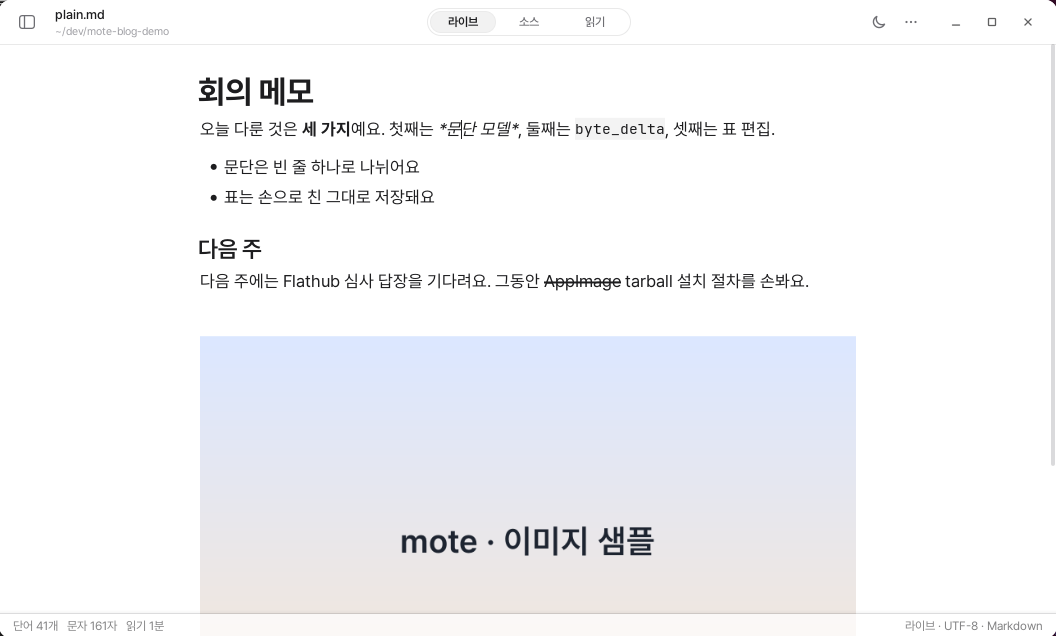
*. Os asteriscos também estão inclinados, enquanto o texto em negrito e o código inline na mesma linha permanecem renderizados.Antes, todos os símbolos eram exibidos em cinza. Com isso, no instante em que o cursor era posicionado sobre um texto em negrito, parecia que a palavra estava presa entre parênteses cinza. A informação de que o texto em edição estava em negrito também desaparecia por um momento.
Ao aplicar o estilo do texto aos símbolos, o significado ficou mais claro. A palavra continua parecendo estar em negrito, e os asteriscos permanecem apenas como indicadores dos limites desse estilo.
O cinza é usado apenas em símbolos de bloco, como #, > e marcadores. Isso porque esses símbolos explicam a natureza da linha, não a dos caracteres.
O princípio é simples. Os símbolos ligados ao texto são exibidos como parte dele, enquanto os símbolos que definem a linha são exibidos como pano de fundo.
Apenas os asteriscos formam pares automaticamente
Quando um asterisco é digitado, o asterisco de fechamento é criado junto com ele. Ao digitar mais um asterisco, o par cresce e se transforma em um par para negrito.
Se o asterisco de fechamento for digitado depois do conteúdo, nenhum símbolo novo será criado; o cursor simplesmente avançará sobre o símbolo existente. Essa regra também resolveu o problema em que surgiam quatro asteriscos de cada vez.
No entanto, quando um asterisco é digitado imediatamente depois de um caractere ou de outro asterisco, considera-se que o usuário está fechando a sintaxe manualmente. Nesse caso, nenhum par é criado.
Sublinhados e tils não formam pares automaticamente. Isso poderia atrapalhar a digitação de textos comuns como snake_case, __init__ e ~/경로. Eles só funcionam em pares ao envolver um texto selecionado.
O cursor de texto deve chamar menos atenção do que os caracteres
No início, o cursor de texto era azul, a cor de destaque. Agora, ele usa a mesma cor de tinta do corpo do texto.
Uma barra azul combina bem com campos de entrada curtos. Mas, em um documento, os caracteres são os protagonistas. Basta que o cursor de texto indique até onde se escreveu. A cor de destaque foi mantida apenas na área selecionada e nos resultados da pesquisa.
A largura é definida dividindo-se a altura do cursor de texto pela altura da tinta do corpo do texto e arredondando o resultado para um número inteiro. No corpo do texto, o resultado é 1 px, aumentando para 2 px apenas em títulos grandes. Se uma largura fracionária fosse usada diretamente, ela se dividiria entre duas colunas de pixels e ficaria grossa e desfocada, em vez de fina.
A altura segue a altura dos caracteres, não o espaçamento entre linhas. O corpo do texto tem 18 px, h3 tem 24 px, h2 tem 29 px e h1 tem 36 px. Só de olhar para o cursor de texto, é possível saber se ele está no corpo do texto ou em um título.

A intermitência está registrada como a única exceção à regra de não manter uma fonte de repetição durante o estado ocioso. Quando a janela perde o foco, a intermitência é interrompida, e a área selecionada também recua para um alfa de 45 %.
Mantivemos o deslocamento
Quando os símbolos aparecem, os caracteres seguintes se deslocam um pouco. Decidimos não eliminar esse movimento.
Também testamos uma forma de reservar espaço exibindo continuamente os símbolos ocultos em cinza-claro. Mas isso deixava rastros cinza no texto em negrito, e o tachado se projetava para fora da palavra. O resultado era um estado estranho, que não era nem a tela renderizada nem o conteúdo original.
Por outro lado, símbolos no início da linha que possuem elementos desenhados, como marcadores e caixas de tarefas, deslocam a linha de acordo com a diferença de largura entre o conteúdo original e a renderização. Assim, os caracteres do corpo do texto não se movem quando os símbolos são revelados. Já o # dos títulos e o > das citações continuam empurrando o corpo do texto. Essa decisão foi tomada porque editores que funcionam dessa maneira são familiares.
Nos links, a mudança na tela pode ser maior porque o endereço pode ser longo. Por isso, normalmente apenas o texto do link é exibido, acompanhado de uma pequena seta no final. É possível saber que se trata de um link, mas o endereço só aparece durante a edição.
Se for necessário verificar o conteúdo original com precisão, basta usar o modo de código-fonte. O modo ao vivo não é um lugar que mostra todos os símbolos, mas um lugar que abre apenas o trecho que está sendo editado.
O mori não tenta adivinhar a intenção do usuário. Se o cursor estiver dentro da sintaxe, ele mostra os símbolos; se estiver fora, ele os oculta. Adivinhar é conveniente quando o palpite está certo, mas, quando está errado, é difícil entender o motivo. Ao usar apenas um critério — a posição —, o resultado é sempre previsível.
Decidir quando mostrar os símbolos é, no fim das contas, decidir onde manter o olhar do usuário.